
Construction Permit Automation: A Practical Guide

Let me guess: you or your team are tired of wasting countless hours filling out permit applications, uploading documents, and logging into city and county portals to check for updates. You already have a lot on your plate and filling out the same project details again and chasing down missing information every time doesn't help.
Multiply that across several projects and jurisdictions, and managing applications becomes a job of its own.
We built Skyvern to take that kind of repetitive work off people's hands.
For construction teams, that means an AI agent can work through permit portals, enter supplied project information, upload files, and retrieve the results for your team to review.
But useful permit automation needs more than an agent that can fill a form. It needs accurate inputs, a clear definition of success, and a way to handle the steps that require someone who understands the project.
In this article I go over what construction permit automation is, why most of the work is still so manual and show you what can be automated using Skyvern.
What is construction permit automation?
Construction permit automation uses software to perform repeatable tasks involved in preparing, submitting, and managing permit applications. That can include entering project details, uploading documents, collecting application numbers, checking status, and downloading issued permits.
This guide focuses on the applicant's work: the tasks contractors, developers, and permit coordinators perform through existing city and county systems in the United States.
Skyvern handles browser interactions within the process. Your project team supplies the project facts and approved documents, while the permitting authority determines the application's outcome under its process.
Why permit work is still so manual

Permit applications are still very manual because the information is scattered, requirements vary, and the work continues after submission.
Project information lives in different places
The project address might be in your project-management system, contractor details in a spreadsheet, and drawings in a shared folder. Someone has to gather that information, check that it is current, and enter it into the permit portal. Across multiple applications, your team ends up repeatedly moving information it already has.
Jurisdictions have different requirements
A process that works for one city may need adjustments for the next. Permit categories, required fields, supporting documents, and submission steps can differ. Your team has to check each jurisdiction’s requirements and work through its process, even when the projects themselves are similar.
Documents need preparation
Having the drawings ready does not mean the submission package is ready. Someone still has to select the correct versions, follow file-naming rules, and upload documents into the required folders or categories. If the portal rejects a file, your team has to identify the problem, fix it, and confirm the replacement uploaded successfully.
Applications need follow-up
Submitting the application does not finish the work. Someone has to check its status, retrieve review comments, and get each request to the person who can resolve it. When revised documents are ready, your team has to upload them and respond to the outstanding comments. Each correction cycle adds another round of coordination.
Which parts of the permit process can you automate?
A simple way to look at it is to look at where time is wasted. This is where automation will have the biggest impact. For the permit process, time is wasted at those sstages:
- Applicant administration, such as entering data, uploading files, and checking status.
- Project work, such as answering a technical question or revising a drawing.
- The authority's review and approval process.
Skyvern can take on repetitive browser actions in the first category and help move information between the others. The time saved by your coordinator is measurable even when the authority's review timeline stays the same.
Start with a task you can describe clearly, including what the agent should return. These are workflow patterns to configure and test against your actual portals.
| Task | Inputs to provide | Work to automate | Result to check |
|---|---|---|---|
| Prepare an application | Approved project information and selected permit type | Enter fields and navigate conditional pages | Saved application and a list of unanswered questions |
| Upload documents | Required files, versions, and document categories | Select and upload each specified file | Portal attachment list matches the document manifest |
| Submit an approved application | Reviewed application and authorization to submit | Complete the permitted submission steps | Application reference and submission confirmation |
| Monitor progress | Application reference and checking schedule | Open the record and extract its current state | Exact portal status, timestamp, and new notices |
| Handle correspondence | Application reference and responsible team member | Retrieve correction requests and supporting files | Notice delivered to the person responsible for responding |
| Retrieve permits or arrange inspections | Issued record, or approved inspection type and availability | Download documents or request an available appointment | Saved permit files or confirmed inspection details |
How we use Skyvern to work across permit portals
Skyvern opens a browser, examines a screenshot and the page's structure, and uses an LLM to choose its next action. It can then interact with the page and check the resulting state. Our architecture documentation explains that loop.
For a permit form, that means the agent can use field labels and page context to locate the address input, interact with dropdowns, and respond when a selection reveals additional questions. It reduces the amount of fixed navigation and field-location logic you need to maintain.
I also wouldn't discard a useful API. If a portal provides a supported API that covers the required actions, it may be the simplest integration. Browser automation helps with work that remains inside the website, particularly when you need to navigate several different systems.
Reuse the project-data model and the workflow pattern across jurisdictions, then validate each portal's requirements and behavior. A flexible agent gives you more room to adapt without making every jurisdiction identical.
How to build the first permit workflow in Skyvern
For this illustrative walkthrough, we'll imagine a contractor who is preparing a commercial alteration application on a portal that supports saved drafts. The permit type, project details, and documents have already been checked by the project team.
Build three connected pieces: application preparation, approved submission, and ongoing monitoring. This lets you test each outcome separately.
1. Gather the project record and document checklist
Before opening the workflow builder, collect:
- The portal URL and the jurisdiction's current application checklist.
- Your internal project reference, site address, and parcel information where required.
- The selected permit type, approved scope description, and requested project values.
- Applicant, owner, contractor, and design-professional details where required.
- A document manifest listing each file, its version, and its destination category.
- The person responsible for reviewing the prepared application.
Keep the manifest specific. "Upload the plans" leaves room for the wrong revision. "Upload this approved drawing set to the Plans category" gives the workflow a checkable instruction.
If your team already follows a written permit procedure, use it as the starting point. We built SOP Upload to turn process instructions into a workflow you can inspect and refine. Check those instructions against the current portal before running them.
2. Create the agent and configure its inputs
Use Skyvern's visual agent editor to assemble the workflow. Add input parameters for the portal, project data, and document manifest so you can supply a new project without rewriting the instructions.
Skyvern's agent parameters support values including text, JSON, and file URLs. Provide files through a location the run can access, and check that access before attempting an upload.
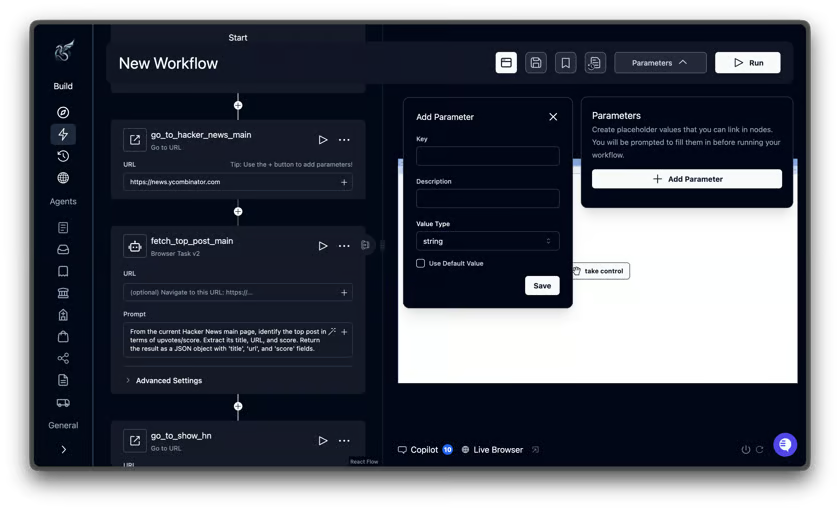
Configure the portal login through Skyvern's credential management and reference it in the Login block. Keep passwords out of the application instructions. The credential documentation covers the available storage and integration options.
Two-factor authentication needs its own setup. Authenticator codes can use a configured TOTP secret. Email or SMS codes need a configured route to supply them to the run. Our 2FA documentation explains those options. Test login on its own before adding the application steps.
3. Prepare the application and verify the draft
Add a Browser Task to work through the application. Give it a defined stopping point. For this first workflow, that point is a saved draft ready for review.
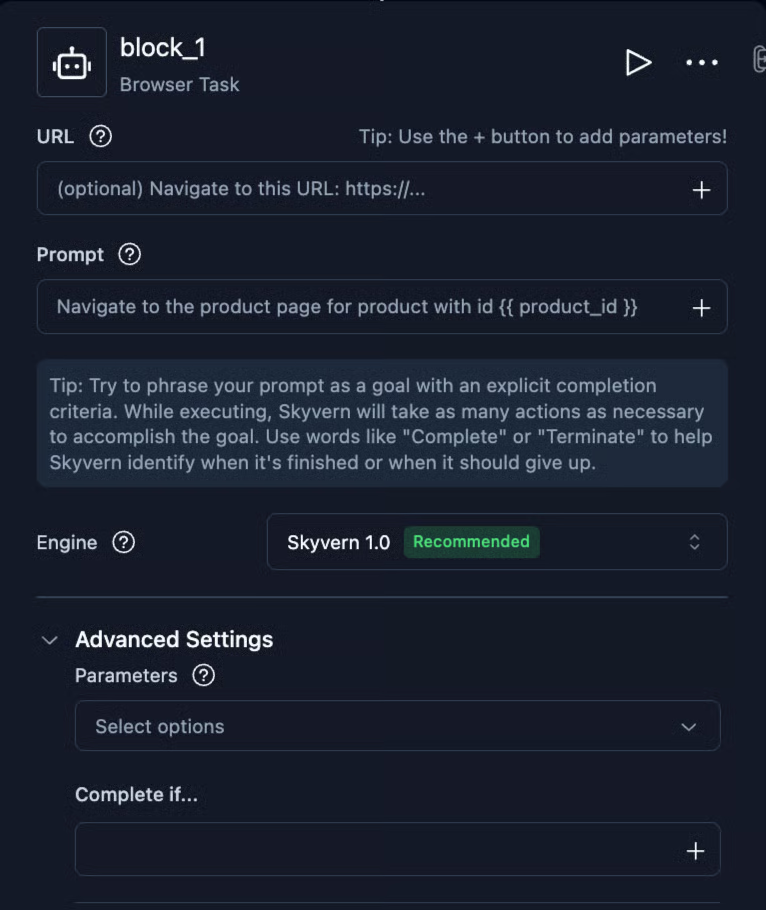
An example instruction, using the parameters you created:
Open {{ portal_url }} and prepare the permit application using
{{ project_data }} and the files in {{ document_manifest }}.

Check for an existing draft using the supplied project reference.
If the matching draft is unambiguous, continue it. If multiple
records match, stop and report them.

Use only the supplied project values and documents. If a required
answer is missing or a choice is ambiguous, report the question.
Do not guess an answer, submit the application, pay a fee, or
complete a certification.

Save the draft where the portal allows it. Return the draft
reference, current page URL, attached filenames, unresolved
questions, and any validation messages shown by the portal.
Watch the first run. Confirm that it selects the intended record, maps the inputs correctly, and uploads the specified files. Treat the prompt as instructions to test, rather than evidence that the workflow is ready for unattended use.
Follow the task with extraction and validation steps. Compare the saved address, applicant details, and attachment list with your inputs. A visible filename alone may not confirm that an upload finished, so check the portal's upload status too.
4. Review the application before triggering submission
Have the coordinator inspect the saved draft and resolve outstanding questions. The review should cover the information entered, file versions, declarations, and any fees requiring authorization.
For this design, the preparation agent ends at the saved draft. Once review is complete, the reviewer can trigger a separate submission workflow using that draft's reference and the approved information. Recheck the current application before submitting, especially if someone has edited it since review.
Skyvern also offers a Human Interaction block for review within a workflow. Its documented timeout can allow automatic continuation, so check that behavior before using it as a mandatory approval step. For a first implementation, separate preparation and submission make the decision easier to control.
5. Capture what happened
Make the submission task return the portal's confirmation. I would keep these fields alongside the project record:
- Internal project reference and portal application number.
- Exact portal status and confirmation text.
- Submission or checking timestamp.
- Receipt or confirmation document, when available.
- Outstanding items and the person responsible for the next action.
A completed automation run and an approved permit are separate facts. Store both the run outcome and the permit's state.
If the portal times out after submission, inspect the application record before trying again. The submission may have succeeded even though the browser did not receive the confirmation.
Download records you need to retain into your project repository. Skyvern's file results can include expiring download URLs, so a temporary link should not be your only copy of a receipt or issued permit.
6. Add monitoring and connect the results to your team
Create a separate agent that opens the application, reads its status, and retrieves new notices. It should check existing records without starting new applications.
You can schedule the agent in Skyvern. Choose a frequency that fits the project's deadlines and the portal's usage requirements, then verify the schedule's timezone.
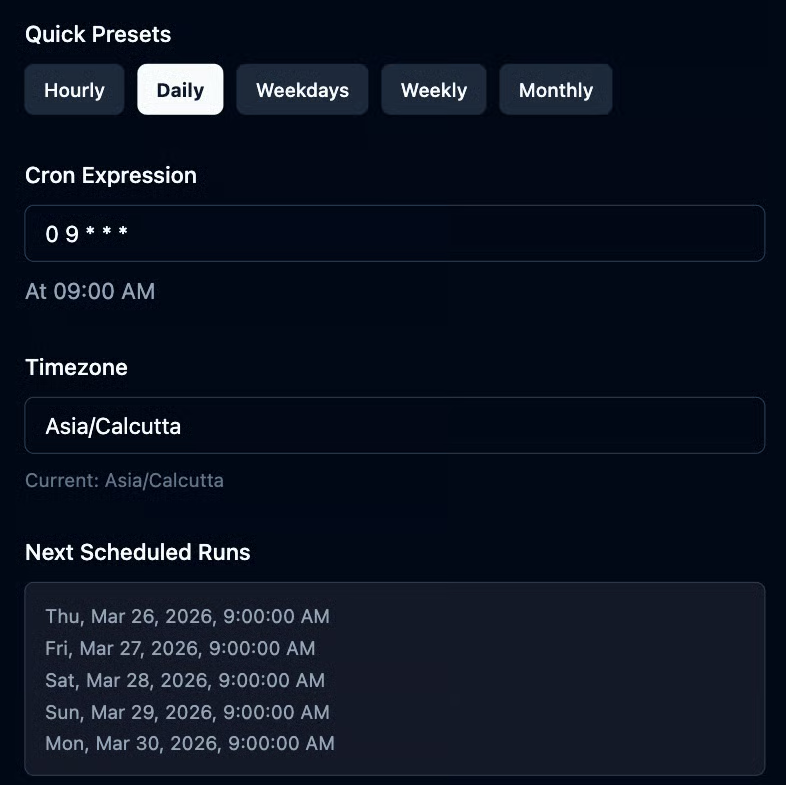
Your tracking system should compare each result with the previous one. Notify the responsible person when there is a meaningful change, and record failed checks so an old status does not look current.
Use webhooks to receive the results when a run finishes, then configure your integration to update the project record. The scheduled portal visit discovers the change. The webhook delivers the run's result.
If your team uses Procore, Buildertrend, or another construction system, check its integration options and map the returned fields into the appropriate record. That connection is part of the implementation.
How to handle the cases that need a human decision?
You want a permit workflow to make issues and unresolved work visible. A missing answer should become an assigned question, with enough context for someone to resolve it.
A simple way to approach it is to design the response to common exceptions before expanding the workflow:
| Situation | Response to build into the process |
|---|---|
| A required answer is missing | Return the field label and project reference to the owner of that information. |
| The portal offers several plausible permit types | Ask the permit coordinator to confirm the selection. |
| A file is rejected or its version is unclear | Preserve the error and ask for the correct document. |
| Login expires | Reauthenticate through the configured flow, then verify the current application state. |
| Submission or payment has an uncertain outcome | Check the portal record and receipt before repeating the action. |
| A correction notice requires a design change | Retrieve the notice and route it to the responsible project professional. |
Returning to an application also requires deliberate session management. Reusing browser state can reduce repeated login work, but the portal can still expire a session or require another verification step.
Skyvern Cloud supports automatic CAPTCHA solving, although success is not guaranteed. Our CAPTCHA documentation also describes manual intervention and the different behavior of self-hosted deployments. Check the deployment you intend to use.
For transient failures, use a bounded retry policy and preserve the failure reason. Our guide to error handling in browser automation covers that foundation. For permit workflows, add the application-specific checks above, particularly around actions that create a record or charge a fee.
How I'd measure a pilot and expand it
Choose one permit type and a portal your coordinator knows. If application preparation involves too many unresolved decisions, begin with status checks on existing applications.
Record the current process before automating it. Include the time spent finding documents, entering information, reviewing the result, and handling mistakes. Then measure the same work during the pilot.
I would track staff time per application, the proportion of runs with verified outputs, how often someone has to intervene, and the cost of running and maintaining the workflow. For monitoring, track the last successful check separately from the last attempted check.
Calculate savings from those observations. For example, reducing measured staff effort by 20 minutes across 60 applications would free 20 hours. That is an illustrative calculation. Your result depends on the time still needed for review and exceptions, as well as the work the automation removes.
Keep municipal review time as a separate measure. More complete submissions and quicker responses may help an application move through the process, but the pilot needs evidence before you attribute a change in approval time to automation.
Expand after the first workflow produces results your team can verify consistently. For each additional jurisdiction, check the form requirements, document rules, login flow, and meaning of the returned statuses. Reuse the parts that work and adjust the parts that differ.
To try this with Skyvern, bring one portal, a sample project record, and the checklist your coordinator already uses. Start building an agent around that workflow, with one defined task and a result your coordinator can check.